
Buying through CNFans, told as a relay of one link
Historical CNFans tutorial: nine steps and original screens, verified on 23 September 2026. The official site still displayed a maintenance notice on 21 October. Check account availability and current terms before purchasing; old prices, promotions and allowances visible in the images are not today’s offer.
Nine hand-offs for one listing link. Carry the item number, option and price into the order record; later add the warehouse item, outbound request and parcel number. A copied link alone is never the whole order.
Follow the three phases in order
Steps 1–3 prepare and pay for the purchase. Steps 4–6 cover buying, domestic delivery and warehouse checks. Steps 7–9 arrange and follow the international parcel.
- Search the product link
- Select specifications and submit
- Pay for the goods and domestic delivery
- The agent accepts the order and purchases
- The seller sends the goods to the warehouse
- Inspect the arrival photos and Warehouse record
- Select warehouse items and request outbound shipping
- Choose the route and pay international shipping
- Follow dispatch in Parcels and check delivery
Watch the official CNFans tutorial · 1 min 37 sec
The video shows the historical interface. The written steps below cover the same journey; check available methods and charges in your account.
Your purchase request
Step 1. Search the product link
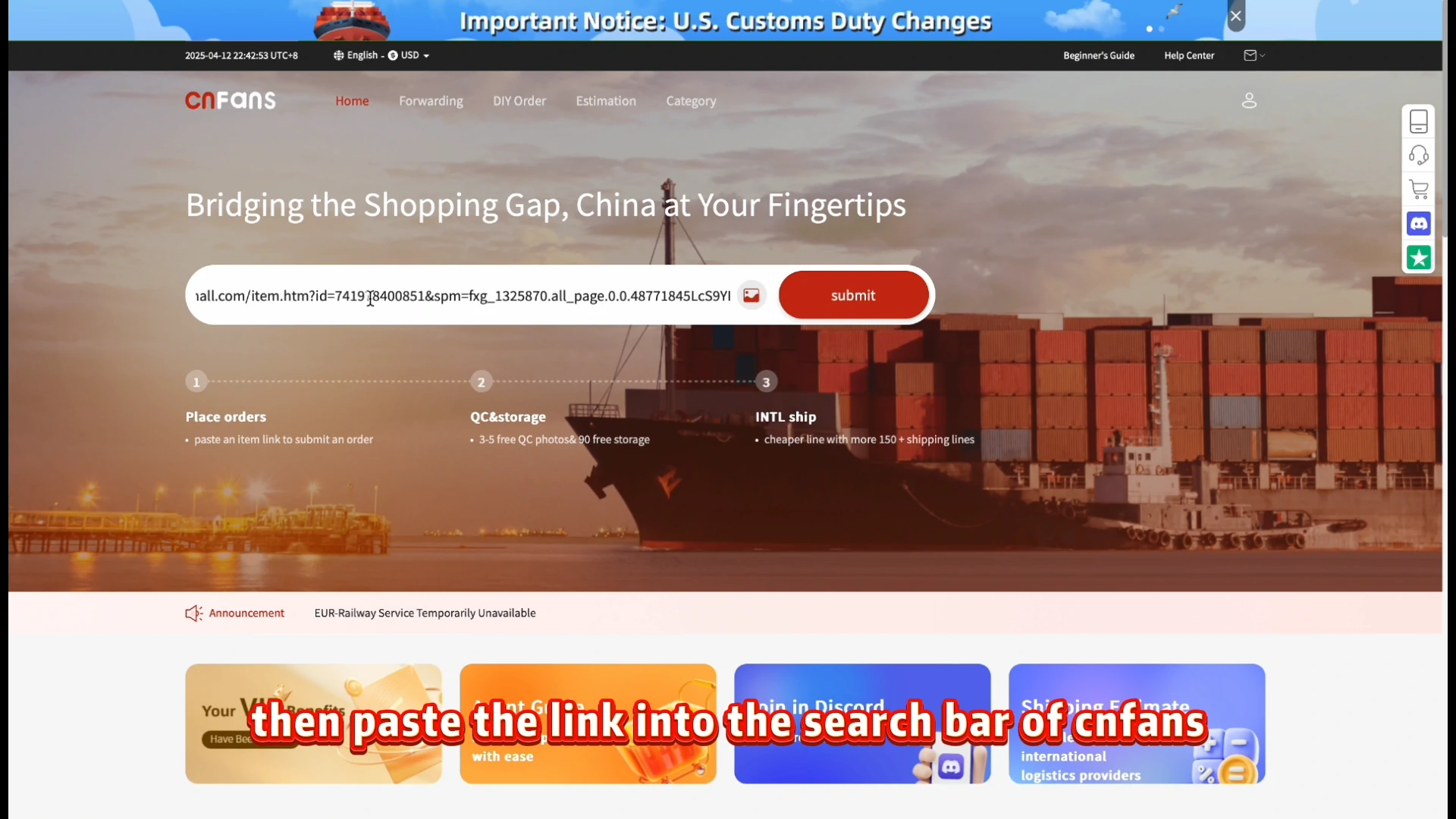
Open the original seller listing, copy its product URL and search that link on CNFans. The historical official tutorial begins with this input; a spreadsheet card or category URL is only a discovery aid. Check that the imported product is the one you intended.
The historical instructions name Taobao and 1688. A listing found on another marketplace is not proof that CNFans currently accepts it. Confirm platform and product eligibility before paying.
You start with a photo, a category and a price, and the only thing worth taking from them is the link. Open the entry instead of judging from the thumbnail, then follow it to the listing. Copy addresses from the address bar; never retype a number from a screenshot.
The entry address already holds what you need. Catalog entries end in w- and ten digits, and on the 32 entries we opened on October 20, 2026 those digits matched the Weidian listing's item number every time. If you only save one thing from this leg, save that number.
Your purchase request
Step 2. Select specifications and submit
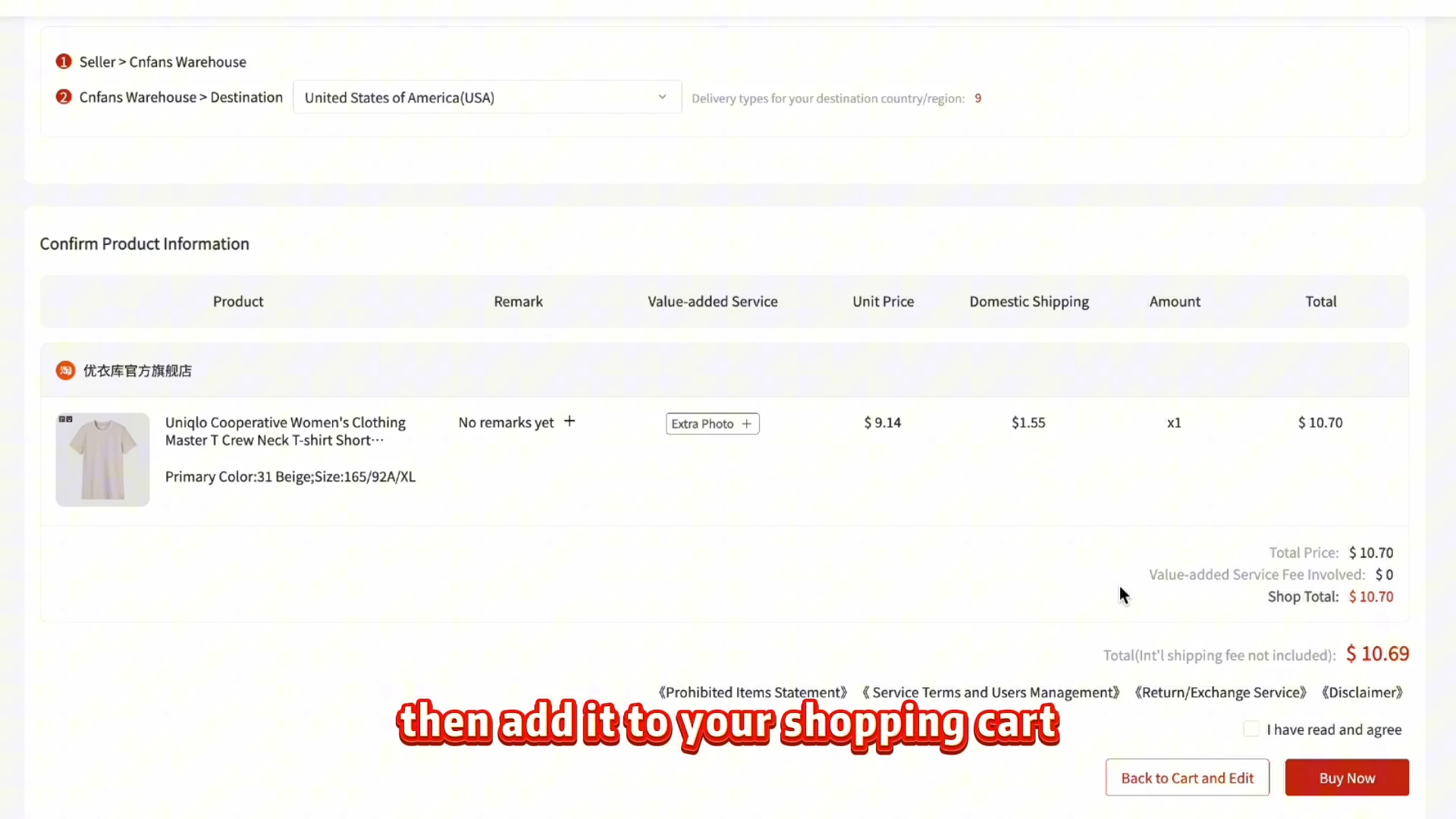
Choose the exact colour, size, version and quantity, then add the item to the cart or submit it for purchase. Compare the order summary with the seller menu, including the chosen option price, domestic delivery and any requested extra service.
The video frame shows the review stage after selection, not a demonstration of every option menu. Save the option text and a reference image; a cover containing several products does not order all of them.
The listing is the seller's own page, and it outranks the card on everything that changes: price, stock, photos, options. Check that the photos match what you picked, then open the option menu. That menu is the real product list. On the jacket listing we read through Weidian's public option data, one group was simply titled ABCD and the other was sizes, twenty combinations in all.
Catalog entries offered two links to each listing: a plain one carrying only the item number, and a longer one with an invite code and a share token added. Both open the same page. Keep the plain one, because it is the version you can check by eye.
Note the price beside the option you want, not the headline price. Listings can price each option on its own, and the number on the catalog card is often the cheapest choice rather than yours.
Your purchase request
Step 3. Pay for the goods and domestic delivery
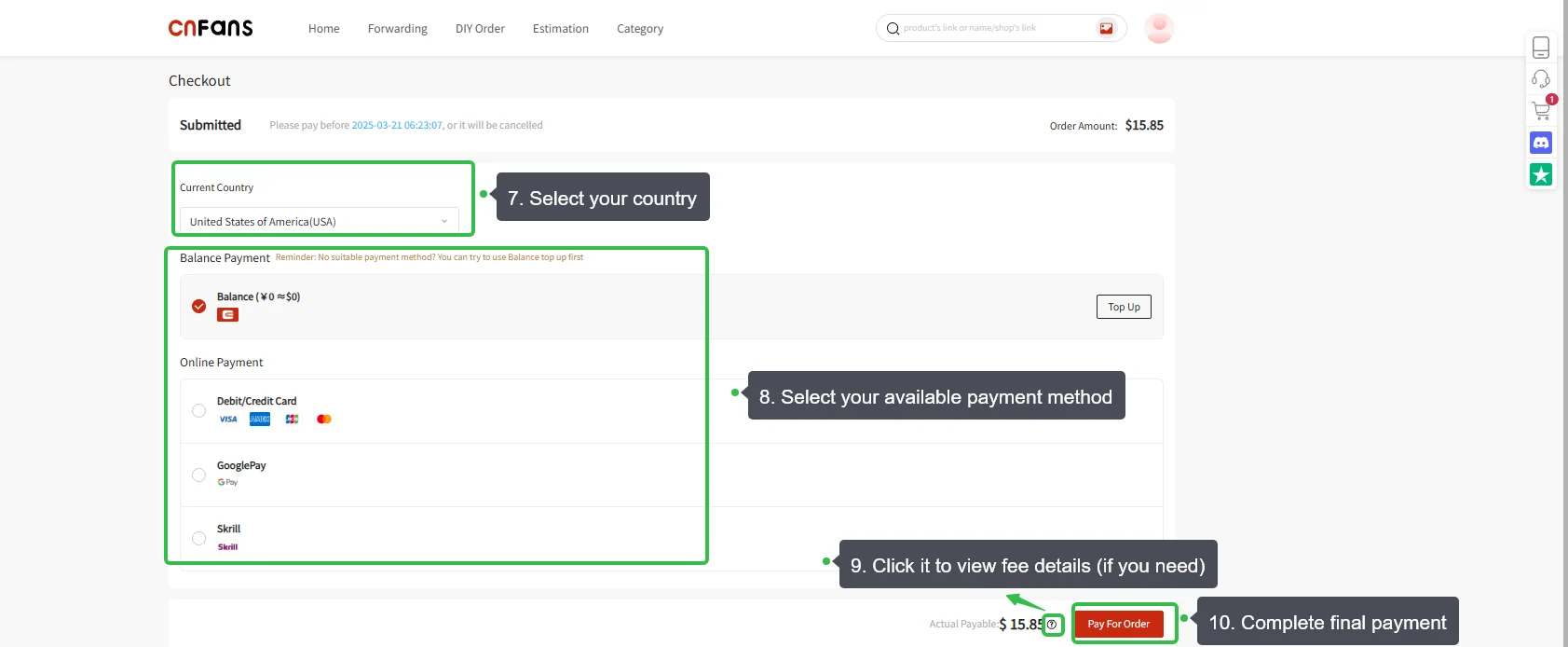
The first payment funds the selected goods and the seller’s delivery to the Chinese warehouse, together with charges disclosed for that order. It excludes international shipping. Check destination, payment method, currency, conversion and fee details before confirming.
Keep the order number and payment record. Submitted or Payment Pending is not proof of a completed payment; check the resulting order status before paying again. Historical payment logos and amounts are examples, not current availability or a quotation.
Purchase and warehouse
Step 4. The agent accepts the order and purchases
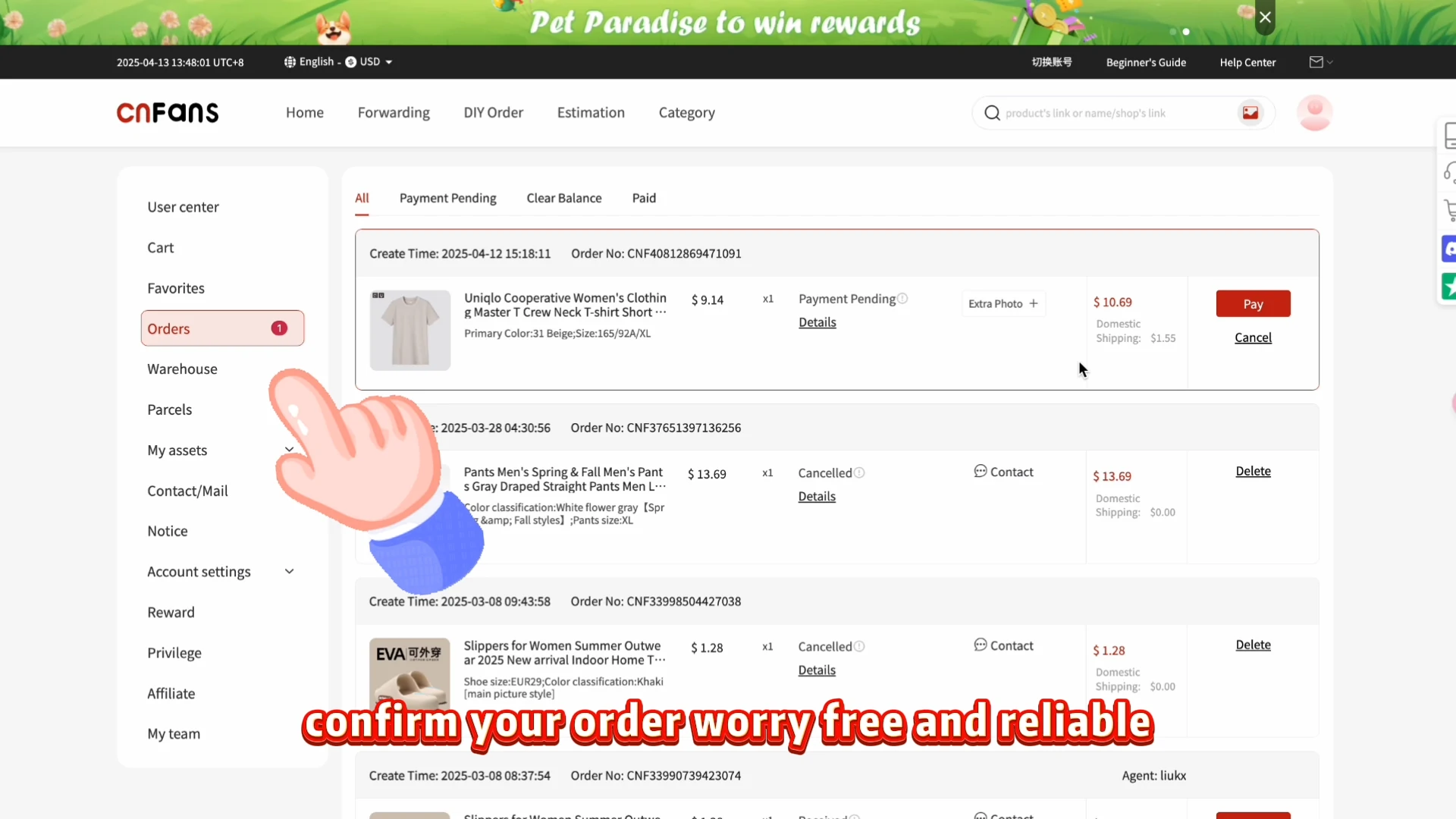
After payment, CNFans accepts the request and purchases from the seller. Check the order’s progress in Orders and read any message about stock, option changes or additional charges. A paid request and a completed seller purchase are different stages.
If the selected option is unavailable, ask for the proposed replacement or cancellation terms before agreeing. Keep the exact replacement specification, refund amount, any retained fee and the refund destination in the order record.
Purchase and warehouse
Step 5. The seller sends the goods to the warehouse
After purchase, the seller dispatches the item to a CNFans warehouse in China. This is domestic transport, not the international parcel to your address. A purchase confirmation does not prove dispatch, and a courier delivery scan does not prove the item has finished warehouse processing.
Check the seller’s dispatch estimate and the order update. If progress stops, use the item and order numbers to ask which hand-off is outstanding. Avoid setting a guaranteed arrival date from a different buyer’s order.
If the agent asks you to decide, ask for the new item number or option name in writing before you agree to a swap. A replacement described in words is a new link without the number, and the warehouse photos will be checked against whatever you approve here.
Purchase and warehouse
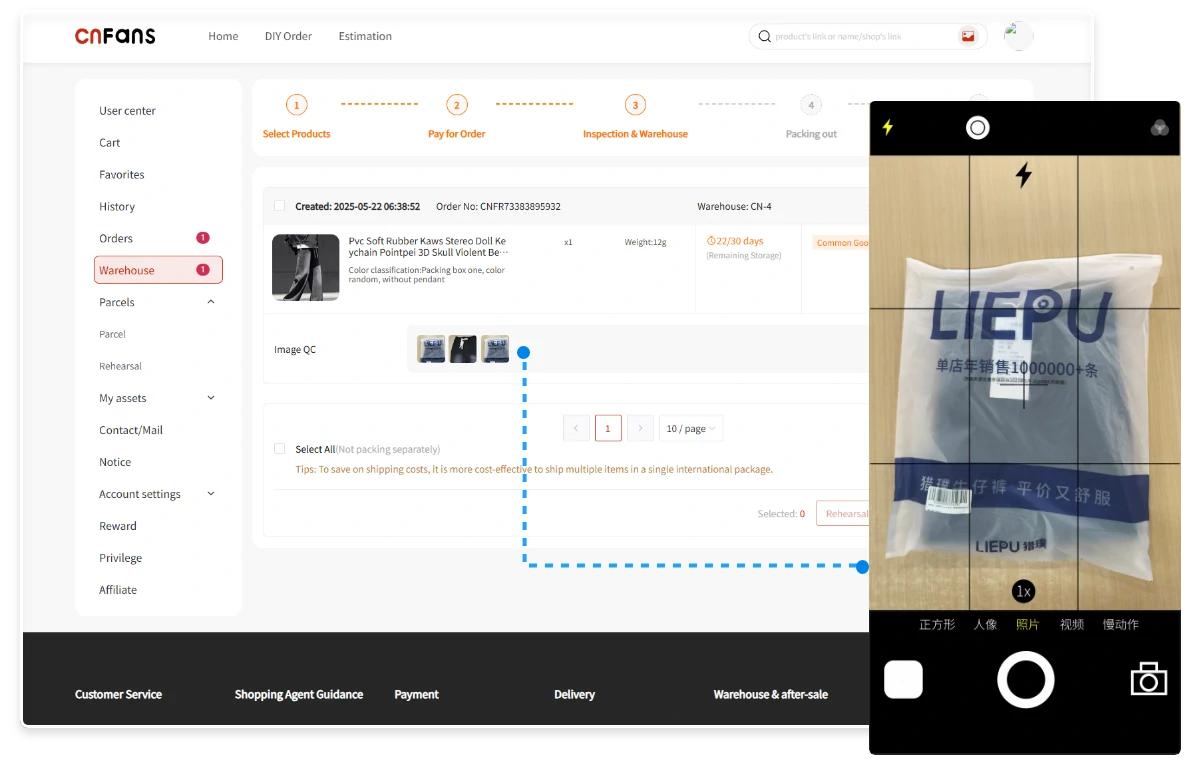
Step 6. Inspect the arrival photos and Warehouse record
The official sequence next places inspection and warehousing after receipt. Open Warehouse and the available QC photos, then compare the actual item with the saved option, quantity, size label and requested details. Check the item record and any storage deadline.
Request a specific missing view or measurement if needed, confirming its availability and charge first. Resolve discrepancies before international dispatch where possible. QC photographs do not prove authenticity, hidden performance or a right to a free return.
Then decide whether the evidence is sufficient. If not, ask for the precise missing angle or measurement and check any fee. A return or exchange is a request subject to the order terms, not an automatic result. Compare the photos with the saved listing before dispatch.
The international parcel
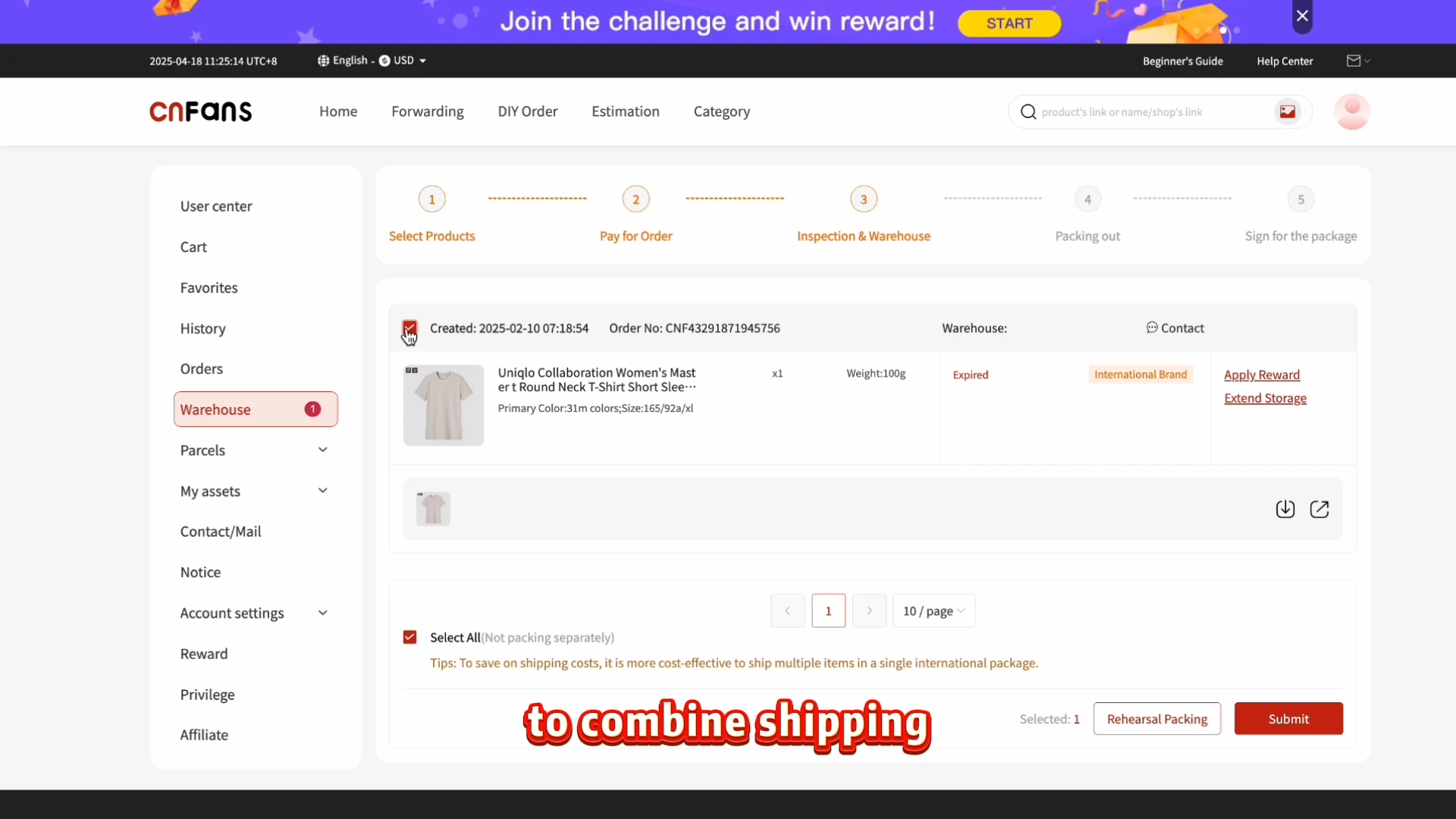
Step 7. Select warehouse items and request outbound shipping
In Warehouse, select the eligible items you want sent together and submit the outbound shipping request. Check the recipient, contents, packing choices and the shipping method offered. In the archived guide this request comes before choosing the route and paying international freight.
Resolve expired storage, incomplete checks or other eligibility warnings first. A ticked item is not automatically ready to ship. Compare combining and separating items; extra bulk or restricted contents can change which routes are available.
The international parcel
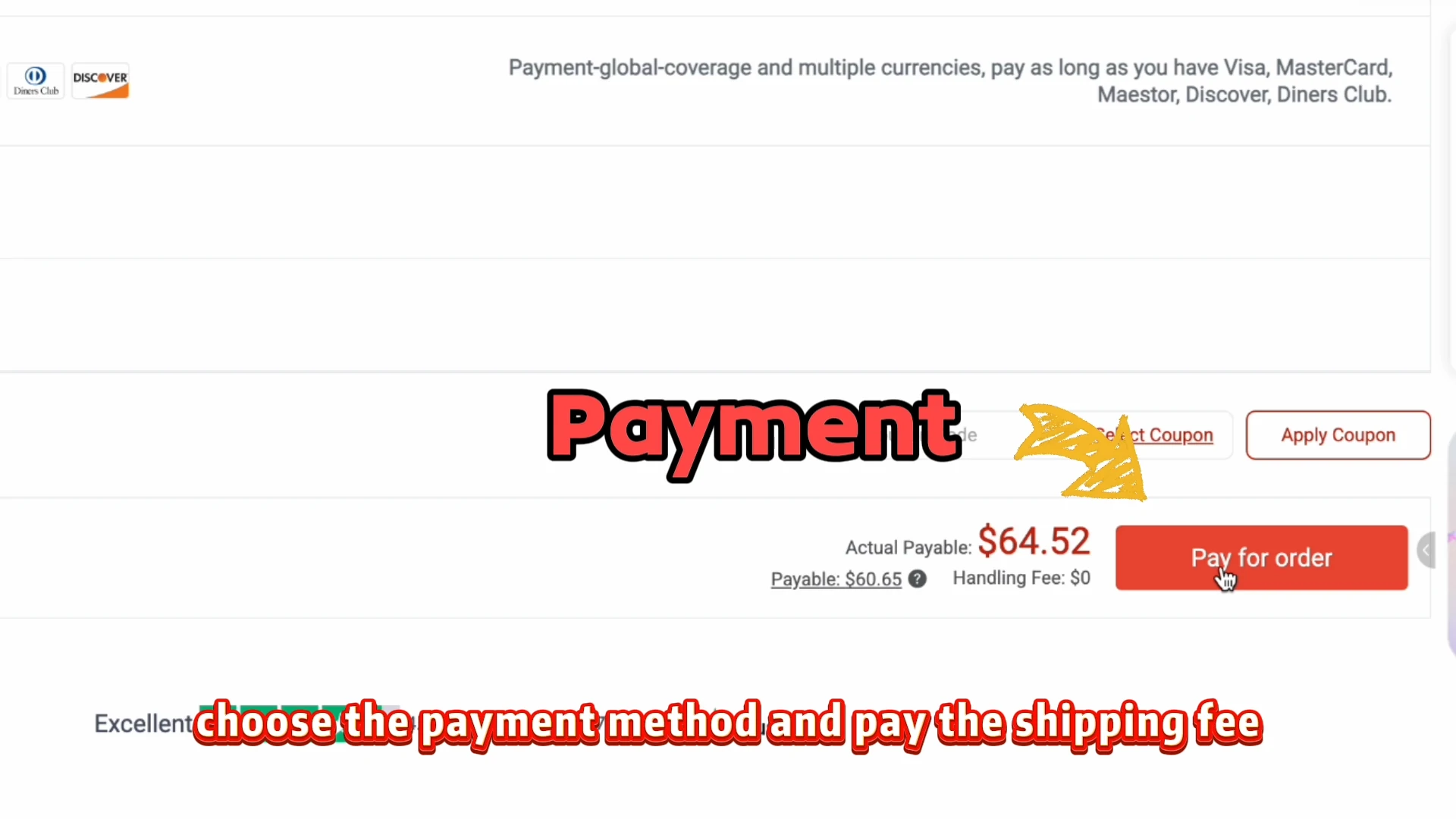
Step 8. Choose the route and pay international shipping
After the outbound request, choose an available logistics route and pay its shipping charge. Check destination coverage, permitted contents, charging weight, dimensions, packing services and any disclosed additional charges. Save the selected quote and payment record.
Follow the account’s stated weighing, packing and settlement procedure: a prepaid estimate may require a later adjustment, while other options use a confirmed quote. Do not treat the goods payment, a cost calculator or the historical amount in the video as the final international bill.
Choosing the line last does not mean thinking about it last. If an item can only travel on a narrow set of lines, such as fragrance or a power bank, that limit applies to everything packed with it.
The international parcel
Step 9. Follow dispatch in Parcels and check delivery
After dispatch, open Parcels for the shipment record and tracking. Keep the parcel number and carrier tracking number with the order list. An outbound request or a paid shipping bill is not, by itself, evidence that the carrier has collected the box.
Follow the carrier’s scans and any delivery or import-charge notice through its official channels. On arrival, photograph the parcel and compare contents with the order and warehouse records. Report a discrepancy promptly under the applicable claim terms, keeping packaging and evidence.
The link identifies a listing, not a ready-made order
The historical CNFans search field accepted a product or shop link. For a purchase, carry the complete item listing rather than a category URL or a catalogue search result. The item number should match the page you intended to order from.
One listing may contain twenty combinations of size and colour. The same URL can therefore produce very different purchases. Add the selected option name, size and quantity to your carry note, and save a screenshot of the menu selection with its price.
If the link reader recognises an item number, it has parsed the address; it has not visited the seller, verified stock or reserved an option. Open the listing and compare the number and available options yourself. At the agent order step, stop if the imported page shows another product or a missing choice. Use the item-number guide for links copied from app share text.